How To Resize Content Easily With A Video Editor For YouTube

Key Takeaways
- Choosing the right video editor for YouTube is essential, as incorrect formatting can reduce watch time, hurt engagement, and limit how your content performs on the platform.
- Understanding the correct aspect ratio for YouTube videos (16:9 for standard and 9:16 for Shorts) ensures your videos display properly without black bars, making your content look more professional.
- The best video editor for YouTube allows you to resize video for YouTube, crop frames precisely, and preview changes—helping you avoid distortion and maintain high-quality visuals.
- Using an online video editor for YouTube or YouTube video editing software simplifies the process, especially when you need to create multiple formats for different platforms in one go.
- For creators starting out, an easy video editor for YouTube with basic tools like trimming, captions, and a YouTube video cropper is enough to edit YouTube videos easily and improve viewer retention.
- Efficient YouTube editing tools help you change video size for YouTube, optimize formatting, and maintain consistency—making it easier to grow your channel with regular, high-quality uploads.
Upload a video in the wrong dimensions to YouTube, and the platform adjusts it for you. That sounds helpful until you see what it actually does: black bars along the sides, cropped edges that cut off your subject, or a blurry pillarboxed frame that signals something went wrong before the video even starts.
YouTube has 2.85 billion monthly active users, according to SQ Magazine’s YouTube statistics report. Over one billion hours of video are played on the platform every day. In a space that is competitive, a poorly formatted video does not just look amateur. It loses clicks, kills watch time, and stalls channel growth before it begins.
Resizing content for YouTube does not require professional editing software or a steep learning curve. The right tool handles it in minutes.
Here is exactly what you need to know about YouTube dimensions, why they matter, and how to resize your content without sacrificing quality.
Why YouTube Video Dimensions Matter More Than Most Creators Realize
Creators typically think in terms of content first and then format second. This is costing them. A poorly formatted upload impacts all of the metrics that matter to them: watch time, click-through rates, viewer retention, and how the algorithm shares the content with new audiences.
YouTube recommends using a 16:9 aspect ratio for YouTube videos. This is the default ratio that will look good in the desktop player across all devices. The 1920 x 1080 resolution will fill the desktop player perfectly. If the creator uploads a video in a different aspect ratio, YouTube will automatically add padding or crop the image. Neither of these looks good on a creator.
When it comes to Shorts, the recommendations are completely different. The platform requires a 9:16 ratio (1080 x 1920). If the creator uploads a horizontal video to Shorts, it will be letterboxed in the frame and will not have the full-screen impact needed for Shorts to work in the first place.
The algorithm effect is also very real. A video’s watch time is one of the most important factors the YouTube algorithm uses to rank it. If the video is poorly formatted and the viewer does not find it interesting, they might leave in the first few seconds. This indicates to the algorithm that the video is not worth the promotion. A formatting error in the video could cause it to fail during the upload process before a single person even views it, and the content is judged.
A good video editor for YouTube ensures the video is set to the correct dimensions before export. It should also allow the viewer to preview the video exactly as they will see it and make precise changes without affecting the video in any way. This ensures that the most common error made by video creators is avoided from the very beginning, and that the video does not experience the loss of viewership that can occur in the early seconds.

YouTube Video Size and Aspect Ratio Requirements at a Glance
The specifications required for different types of YouTube uploads vary. Using an incorrect specification is one of the most common reasons why videos look wrong on upload. Knowing this removes any confusion even before you start working on the editor.
YouTube allows videos up to 256 GB in size or 12 hours in length, with MP4 using the H.264 codec as the standard recommendation for quality and compatibility.
The table below lists the major specifications for dimensions, aspect ratios, and frame rates across different content types.
| Content Type | Aspect Ratio | Resolution | Frame Rate | Recommended Format |
|---|---|---|---|---|
| Standard Video | 16:9 | 1920×1080 (FHD) | 24, 25, 30 fps | MP4 / H.264 |
| 4K Video | 16:9 | 3840×2160 (UHD) | 24, 25, 30, 60 fps | MP4 / H.264 |
| HD Video | 16:9 | 1280×720 (HD) | 24, 25, 30 fps | MP4 / H.264 |
| YouTube Shorts | 9:16 | 1080×1920 | Up to 60 fps | MP4 / H.264 |
| Embedded / Square | 1:1 | 1080×1080 | 24, 25, 30 fps | MP4 / H.264 |
The YouTube video resizer tool in Promo has presets for all the formats in this table. Simply choose the content type, and the tool will automatically set the correct dimensions. No more calculation, trial-and-error exporting, or accidentally uploading a video at the wrong resolution after a full editing session.
How To Resize Video for YouTube Without Losing Quality
Resizing a video is not the same as unthinkingly cropping a video. A poorly resized video might stretch the content, clip the subject, or degrade the resolution to the point of being unrecognizable, especially on a larger screen. There are three guidelines for reserving quality through a resize.
- Begin with the highest quality. Notably, YouTube compresses any video you upload. You should begin with a non-compressed video, then attempt to resize it. Always begin with the original video export from your camera or video program before you resize video for YouTube delivery.
- Crop rather than Stretch. Crop a video when you change video size for YouTube from a different aspect ratio. Stretching a video immediately and noticeably alters the proportions. Ensure you crop a video using a high-quality YouTube video editor to preserve the proportions.
- Export with the target resolution. You should set your export resolution to match the target platform resolution from the beginning. Don’t export a 4K video and then resize it.
Online tools designed for video editing for YouTube beginners will automatically implement all three principles. The creator will select the output format, adjust the crop frame, and then export the video.
For content creators who intend to repurpose their content across multiple platforms, the issue of resizing becomes even more complicated. A 16:9 format designed for a traditional YouTube upload must be completely reworked to function as a Short, an Instagram Reel, or a TikTok post. Each of these platforms demands different dimensions.
Manually editing each of these versions from the same source material is not only inefficient but also not a viable option in the long run. The right editing tool will address this issue by offering a feature that lets the creator export all versions of the edited video in a single session.
Alt- video editing
How Promo’s Video Editor Simplifies YouTube Resizing
Promo’s online video editor for YouTube runs entirely in the browser. No download, no installation, no hardware requirements. Open it, upload your footage, and access the full editing suite immediately.
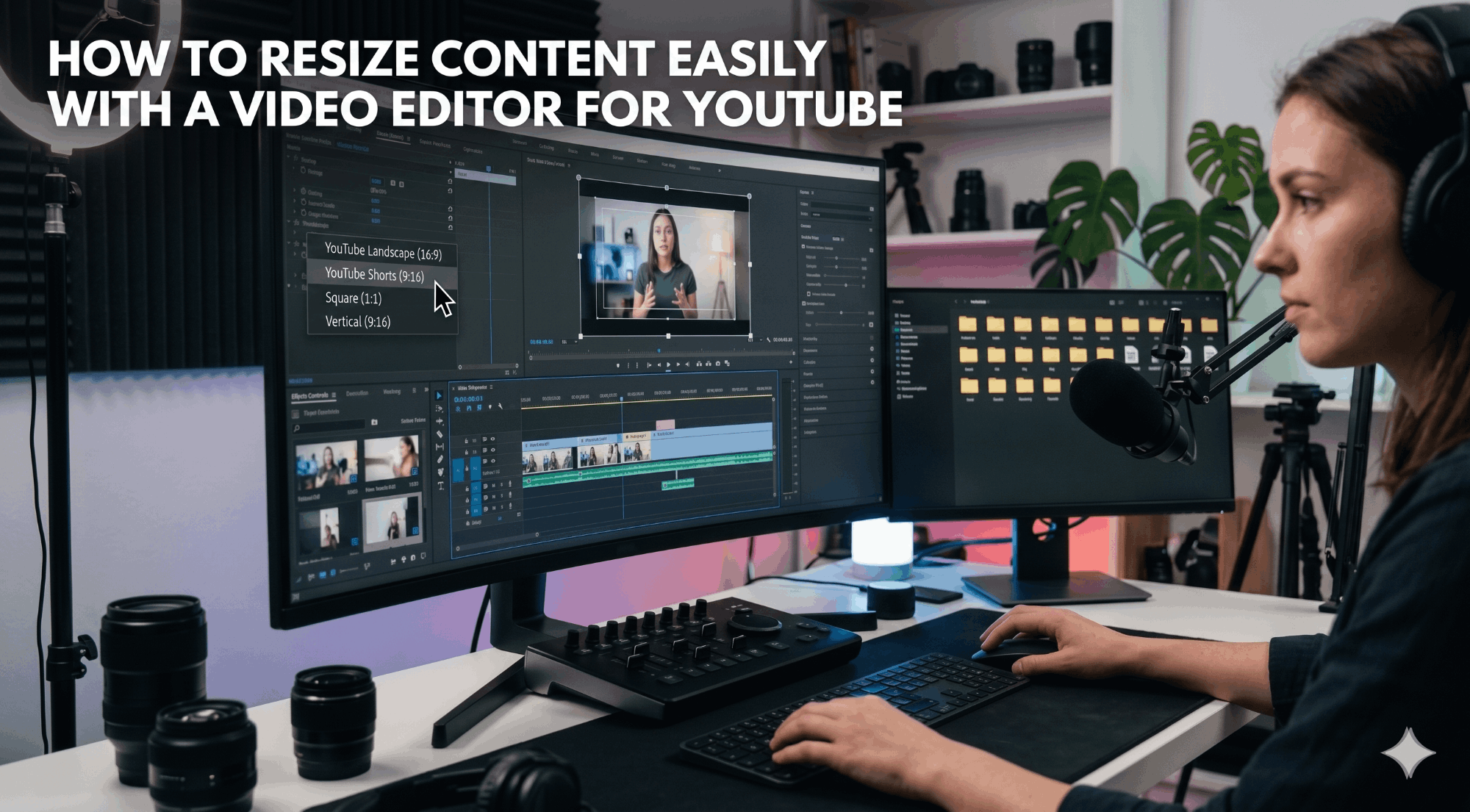
The editor includes preset aspect ratios for every major YouTube format. Select 16:9 for a standard upload, 9:16 for Shorts, or 1:1 for embedded content. The crop frame stays adjustable throughout, so you control exactly which portion of the footage survives the resize. For creators who shoot vertically on a phone and need a horizontal version for desktop, or the reverse, this flexibility saves the re-shoot entirely.
As a best video editor for YouTube end-to-end workflow, Promo handles more than resizing. Text overlays, transitions, licensed background music, automatic captions, and brand elements like logos all sit within the same session. A creator can resize, caption, brand, and schedule without opening a second tool.
For businesses running YouTube content alongside social campaigns, the multi-format export is particularly useful. After editing the primary video, you select additional aspect ratios, adjust the crop for each, and export all versions in a single session. The 16:9 standard version, the 9:16 Short, and the 1:1 square all carry the same branding and captions from the same source edit.
Promo also works as a YouTube video cropper for precise frame adjustments. Unwanted background elements, a speaker who drifted out of frame, or a logo that conflicts with your branding can all be removed through the crop tool without returning to the original footage. The output maintains the target resolution and aspect ratio regardless of how aggressively you crop the source material, which means quality is preserved even when the reframe is significant.
For businesses treating YouTube as a long-term marketing channel, the scheduling and direct publishing features reduce the gap between a finished edit and a live video. Rather than exporting, uploading manually, and entering metadata separately, the workflow runs end to end within the same platform. That compression matters when a team produces weekly content alongside other marketing responsibilities.
YouTube Video Editing for Beginners: What To Prioritize First
Every editor claims to be able to do anything. For a beginner, such a statement is not particularly helpful. Most YouTube content requires only a handful of editing capabilities, and determining what those capabilities are will get you a better result more quickly than attempting to learn a whole array of features right away.
Format your video before anything else. For standard content, upload in 16:9 at 1080p or above. Utilize YouTube video editing software that permits you to select your output before you even start to edit your video. Every decision you make should already take your output into account.
Edit your video for a purpose. YouTube’s algorithm cares about watch time. Every extra second of your video is a chance for a viewer to leave. An easy video editor for YouTube should enable you to trim your video quickly, perhaps through a scrubber or a timeline.
Caption every video. According to Kapwing’s video marketing research, pages with videos are 53 times more likely to rank on Google’s first page. Captions take this to the next level for those who watch videos on mute, and this is a significant portion of social media usage. An editor with automatic captioning eliminates one of the most time-consuming tasks from post-production entirely.
Text overlays, music, and thumbnails follow this. Technical foundation before beauty. Consistency is more important than perfection in any single video. A creator who publishes consistently formatted and trimmed videos with captions on a consistent schedule will outperform one who publishes perfectly formatted and captioned videos sporadically. The best video editor for YouTube is one that makes it feel sustainable to show up every week rather than exhausting.
Final Thoughts
Getting your dimensions right is key to everything else you will do for your production. If you get them wrong, your production may end up looking raw despite being good, but if you get them correct, your production will edit as you want it to.
The good news is, resizing your content for YouTube is now easy. With Promo’s YouTube video editor, you can handle formatting, resizing for various platforms, adding captions, and branding in one place. This means you save time fixing technical issues and can concentrate on creating content that will help you grow your channel.
While creators who succeed may not necessarily be the best at what they do, they will always be the ones who are consistent, efficient, and technically sound. Paying attention to details, such as dimensions, may seem insignificant, but it can make a big difference over time for all your content and thumbnails.
Frequently Asked Questions
What is the best aspect ratio for YouTube videos?
YouTube suggests 16:9 for regular uploads. This will ensure your video fits nicely in the player on all devices. For YouTube Shorts, use 9:16 in a vertical format. Uploading your video in any other ratio will result in unwanted black bars or cropping you can’t control, since it’s automatic.
Can I resize a video for YouTube without losing quality?
You can definitely resize your YouTube video without compromising its quality by starting with a high-quality source file and cropping it. This can be easily achieved by using Promo’s online video editor for YouTube. It helps you crop your YouTube video without compromising its quality by resizing your video properly.
What is the difference between cropping and resizing a video?
The difference between resizing and cropping a video is that resizing changes the video’s overall dimensions, whereas cropping removes a part of it. In the case of YouTube video cropper, it is recommended that a video be cropped, as it maintains the proportion of the image. Resizing a video without cropping can cause image distortion.
Do I need to edit separately for YouTube Shorts and standard videos?
Not when you have the right editing tool. With Promo, you can export a regular 16:9 video and a 9:16 Short from a single editing session. This means you can adjust the crop frame for each, and export all versions simultaneously, with branding and captions carried across all versions.
Is a browser-based video editor good enough for YouTube?
For most cases of using YouTube, yes. A browser-based easy video editor for YouTube includes resizing, trimming, captioning, music, and exporting in multiple formats without needing to install software or have high-spec hardware. While professional filmmakers may need more complex multi-track editing software, most YouTube creators make do with what they need in the browser.


