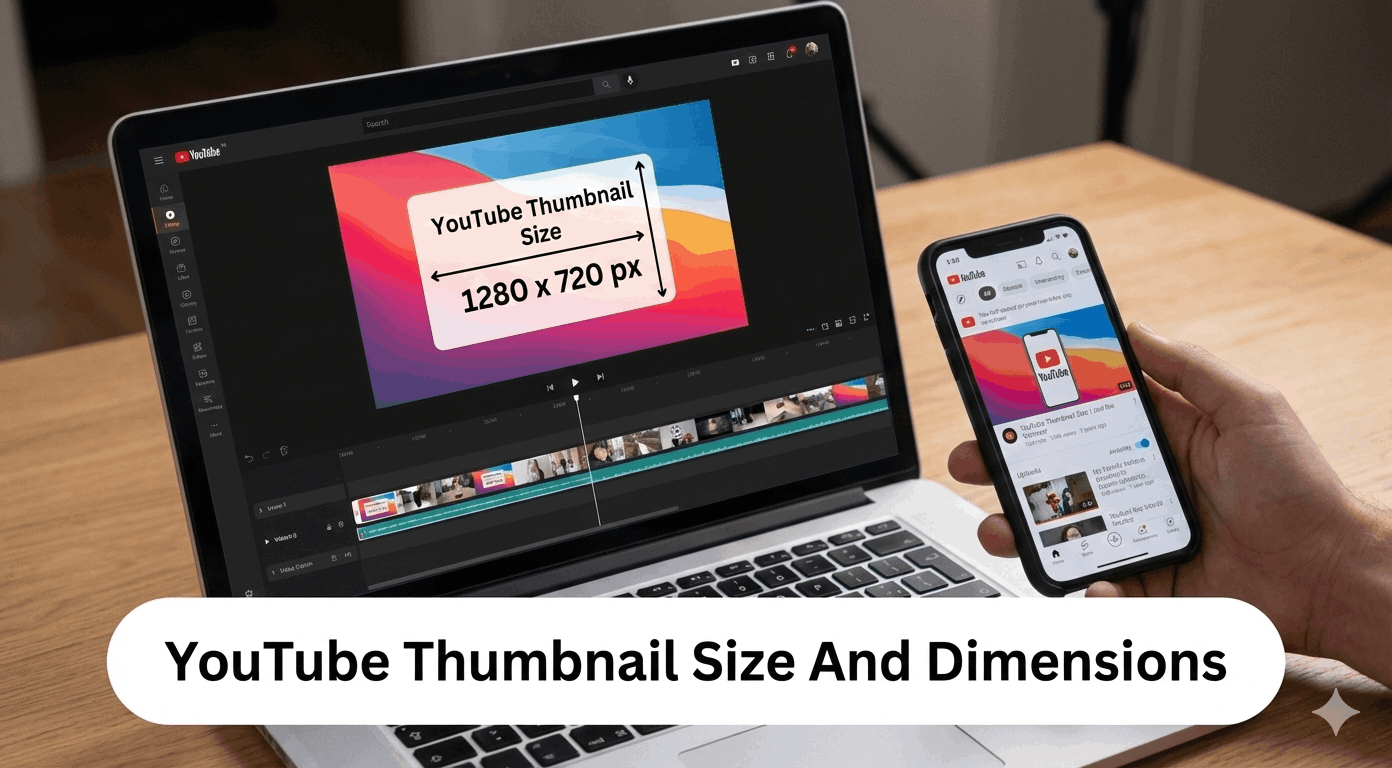
YouTube Thumbnail Size And Dimensions

You might hope that generating YouTube views will be as easy as hitting “publish” on your new video. But getting noticed on the world’s second-largest search engine requires more than just creating great videos. While there are several aspects that influence your content’s reach, today we will focus on YouTube thumbnails, with an emphasis on the ideal YouTube thumbnail size.
YouTube has a default to include a thumbnail image with each video. It is what viewers will see when scrolling their feed, and it not only defines your video but also whether they will like to watch it. Having worked hard to create quality content, it would be a tragedy if people missed it due to your thumbnail not fitting the suggested YouTube thumbnail size or not having an eye-catching design.
While YouTube generates default thumbnails for every video, relying on them isn’t enough. Custom thumbnails are a valuable marketing tool and are worth investing your time in. A proper thumbnail not only communicates your video’s content effectively but can also increase click-through rates, engagement, and overall reach.
To begin with, we will describe the ideal size of the YouTube thumbnail, best design, and the tools such as YouTube thumbnail resizer services and Photoshop techniques to ensure that your thumbnails appear professional on all devices.
Best YouTube Thumbnail Size in a Nutshell
If you’re in the middle of a YouTube video project and need a thumbnail fast, here is a quick checklist of key points for the best YouTube thumbnail size:
- Recommended Dimensions: 1280 x 720 pixels (ideal for desktop and mobile displays)
- File Types: JPEG, PNG, or GIF
- Maximum File Size: 2 MB
- Minimum Width: 640 pixels (never go below this width)
- Aspect Ratio: 16:9 (standard for most YouTube players)
Following these five points will make your thumbnails crisp, professional, and consistent with YouTube thumbnail size guidelines. Even if you’re using a default thumbnail, creating a custom video thumbnail that meets these standards will dramatically improve engagement and click-through rates.
Additionally, consider tools like the YouTube thumbnail resizer or Photoshop to adjust your thumbnail size in Photoshop without losing quality. This ensures your thumbnail looks perfect whether it is viewed on a desktop, tablet, or mobile device.
By keeping these technical and visual aspects in mind, you’ll ensure that your videos are represented in the best possible way, giving them the highest chance to get noticed.
Why YouTube Thumbnails Are Important?

It is easy to think that the quality of your videos alone will drive success on YouTube. While having excellent video content is essential, standing out in a crowded feed requires more than just good content. Your YouTube thumbnail plays a major role in attracting viewers and increasing engagement. Custom thumbnails help your videos stand out, boost click-through rates, and give your channel a professional look.
Here is why creating custom YouTube thumbnails is crucial:
1. Increase Engagement
When you upload a video, your goal is to get it seen by as many people as possible. One of the most effective ways to drive engagement is to use a video thumbnail that grabs attention. High-quality thumbnails encourage viewers to click, watch, and subscribe.
2. Encourage Attention
Many videos on YouTube cover similar topics. To differentiate your content, your thumbnail should stand out. Adding text, bold colors, or unique visuals can make your thumbnail more compelling and ensure it catches the eye. Using Photoshop thumbnail size or a YouTube thumbnail resizer helps create thumbnails that are optimized for both quality and size.
3. Show Your Personality
Thumbnails are an opportunity to showcase personality. If your videos feature hosts or creators, choose images that convey their character, funny, serious, or expressive. Adding text or elements near the person in the thumbnail can enhance viewer connection.
4. Give a Professional Look
High-quality thumbnails make your videos appear professional. Even if your content is strong, a poorly designed thumbnail can reduce perceived quality. Tools like Photoshop or online editors help you create polished thumbnails that align with your brand identity. Consider using consistent styles, fonts, or colors across all thumbnails to reinforce your branding.
YouTube Thumbnail Size Guidelines
The initial experience of creating an ideal YouTube thumbnail may be daunting, but with the help of certain easy tips, the thumbnails will appear professional and appealing to viewers. There are five main points to keep in mind when designing thumbnails for your YouTube videos. Here is a list of features that will allow you to make the thumbnail size in Photoshop or any other tool perfectly accurate.
Recommended Thumbnail Size
This is the most essential place to start. When designing your YouTube thumbnail, set up your design software to give you a field that is 1280 x 720 pixels. Those are the ideal YouTube thumbnail size and YouTube thumbnail dimensions. Once they are set from the start, you can feel free to use your creativity to develop a compelling video thumbnail that fits perfectly within that space.
Minimum YouTube Thumbnail Size
When discussing the minimum thumbnail size in Photoshop or any other tool, focus on the width. Don’t allow your thumbnail to fall below 640 pixels. This is the smallest thumbnail YouTube size that can be uploaded successfully, though it’s best to aim for the recommended 1280 x 720 dimensions. Following the proper YouTube thumbnail size in Photoshop ensures your thumbnail displays correctly across devices.
Maximum YouTube Thumbnail Size
YouTube places a 2MB limit on all thumbnail files. Since these are static images rather than full videos, this limit usually isn’t an issue. However, if you have high-resolution thumbnails or custom graphics, you may need to compress them to stay under 2MB while maintaining the correct YouTube thumbnail resolution.
YouTube Thumbnail Resolution
To maintain clarity on all devices, aim for the highest possible Photoshop thumbnail size or export resolution while keeping the file under 2MB. This ensures your thumbnail YouTube size remains sharp on desktops, mobile devices, and TVs, giving your content a professional look.
YouTube Thumbnail Aspect Ratio
YouTube thumbnails follow a 16:9 aspect ratio, meaning 16 horizontal pixels for every 9 vertical pixels. This ratio produces the recommended 1280 x 720 YouTube thumbnail dimensions. Even if you work with a smaller design, always maintain the YouTube thumbnail size in Photoshop proportion to avoid distortion in your video thumbnail.
Why Are YouTube Thumbnails Big?
YouTube thumbnails are large, thus they can preserve quality across diverse display environments. Beginning with a large image, YouTube can maintain the thumbnail size, looking awesome even when it is scaled down to smaller screens. In case the reverse was adopted, that the little thumbnails should be expanded to bigger screens, image quality would get diminished within a short time span as the image was blown out. You also want to have thumbnails that fit the suggested thumbnail size and the thumbnail size of YouTube, lest you end up with a low-quality image of your videos.
How to Create a Custom YouTube Thumbnail
Designing your own YouTube thumbnail can be somewhat of a practice, though; once you get the process down, it can help boost your click-through rate significantly. You can be creating thumbnails in Photoshop thumbnail size, online YouTube thumbnail resizer, or thumbnail maker, but regardless of what you use, the below steps will help you create professional and engaging thumbnails.
1. Use a Thumbnail Maker
A dedicated YouTube thumbnail maker can make the process easier. These tools often allow you to set the correct YouTube thumbnail size automatically and provide pre-made templates to jumpstart your design. By using one tool consistently, you’ll create a cohesive style that becomes recognizable to your audience.
2. Resize Image
When you have the wrong size image, do not panic. A YouTube thumbnail resizer or Photoshop may resize it to the optimal 1280 x 720 pixels. This makes your thumbnail meet the required standards without compromising quality.
3. Use a Thumbnail Template
Templates will save time and create uniformity for your brand across your channel. You can use pre-existing templates or design your own, taking care to keep the correct YouTube thumbnail size in Photoshop or another editor. Templates also come in handy in case you make video thumbnails regularly, since they keep the style of your channel the same.
4. Choose a Custom Thumbnail Image on YouTube
Although YouTube offers three automatic thumbnail options, you can create your own custom thumbnail, which gives you control over the representation of your content. Select a compelling frame from your video or design an eye-catching image that reflects your content. Overlay text or graphics to make your thumbnail stand out in feeds and search results. The correct YouTube thumbnail resolution will also make sure that the finer graphics are not blurred.
More YouTube Guides:
How to make a YouTube intro
YouTube video size guide
YouTube analytics metrics you should know about
Changing a YouTube Thumbnail Size on Promo
If you have designed a thumbnail but it isn’t sized correctly for YouTube, Promo.com makes resizing quick and easy. Using the YouTube thumbnail resizer, you can adjust your image to the perfect dimensions without losing quality.
- Upload your image from your computer or an existing URL.
- Select the preset option for YouTube thumbnail size (1280 x 720 pixels).
- Apply any additional edits if needed, then download the finished product.
- Upload your correctly sized thumbnail to YouTube to maximize engagement.
This ensures your thumbnail meets YouTube’s recommended standards and maintains the correct thumbnail size in Photoshop or other editors.
Changing a YouTube Thumbnail Size in Photoshop
For those who prefer using Photoshop, adjusting a thumbnail is straightforward and precise.
- Open your thumbnail image in Photoshop.
- Navigate to Image → Image Size.
- Enter 1280 x 720 pixels for the width and height.
- Check Constrain Proportions to prevent distortion.
- Click OK to resize your image.
By doing this, your image will have the correct Photoshop thumbnail size and adhere to YouTube thumbnail resolution standards, making it ideal for all devices and display sizes.
Design Tips for Your YouTube Thumbnail
A big part of YouTube thumbnail design comes down to trial and error. To get it right for your brand and your videos, you are going to need to go through a few iterations and revisions. Don’t worry—it’s all a part of the process. Also, you’ll need to upload various styles of thumbnails to see which ones resonate with your audience. There is nothing like live testing to tell you what works and what doesn’t. These YouTube thumbnail tips will help guide your process.
With that said, there are some general design tips that apply to nearly everyone making thumbnails on YouTube. We recommend keeping these four tips in mind during the design process.
Clutter-Free
For a good start, strive for a basic, simple thumbnail design that is free from unnecessary clutter. Knowing the importance of thumbnails, you might be tempted to pack as much into your available space as possible—but that’s only going to lead to confusion on the part of the viewer. Remember, these thumbnails will be shrunk down to relatively small spaces on mobile devices, so a cluttered design could be hard to decipher when viewed in that setting.
Contrasting Colors And Negative Space
Remembering to contrast your colors nicely is a key part of high-contrast thumbnails. Often, this means picking a color for your text that contrasts with the background color of the image you’ve picked. For example, if the image has quite a bit of white space, use black text and position it on top of the white area in the image. For an image that has many different shades, use a bold color like bright red for your text or graphics to make sure nothing gets lost in the background.
Brand Yourself
It’s a great idea to have a YouTube branding element that you carry from thumbnail to thumbnail across all your videos. This could be a logo for your business if you have one, but there are other options that are less formal and still create a brand. For example, using the same font or fonts for all thumbnails is smart. Try to stick with a limited selection of colors (maybe one or two as your go-to colors and a few supporting shades). This type of branding will make you more memorable in the minds of your audience, and it will also help past viewers recognize your thumbnails when scrolling through a list of videos.
Simple Is Best
This last point comes back to our first note about minimizing clutter. When in doubt, keep your thumbnails as simple as possible. One common tactic on YouTube is to use an arrow to point to an exciting part of the image you’ve selected, then add some text that makes a surprising or bold claim. This is a simple layout; it takes only moments to create, and it will effectively engage your audience.
How to Add a Thumbnail to a YouTube Video
Once your YouTube thumbnail is ready, the next step is to add it to your video to maximize engagement. The process is simple, but using the correct YouTube thumbnail size ensures it displays clearly on all devices.
When logged into your YouTube account, follow these steps:
- Click or tap on “Content” in YouTube Studio.
- Select the video you want to add the thumbnail to.
- Under the “Thumbnail” label, choose “Upload Thumbnail”.
- Select your custom image. Ensure it meets the recommended thumbnail size of 1280 x 720 pixels to maintain optimal YouTube thumbnail resolution.
It is important to note that you don’t have to create your own thumbnail to publish a video on YouTube. The platform automatically generates three default thumbnails from your video. However, customizing your thumbnail using a YouTube thumbnail resizer or adjusting it in Photoshop thumbnail size ensures your video stands out, drives clicks, and enhances your brand identity.
By creating and uploading a custom YouTube thumbnail, you give your audience a clear visual cue about your content, encourage higher click-through rates, and maintain a professional look across your channel.
YouTube Thumbnail Size And Format FAQs
- What is the size of a YouTube thumbnail in pixels?
The ideal dimensions for a YouTube thumbnail are 1280 x 720 pixels, which aligns with the recommended YouTube thumbnail size for high-quality results. Use your favorite design tool to create thumbnails that are precisely that size—or turn to the Image Resizer tool we offer to adjust your existing image to the correct dimensions. After you know you have the right size established for your images, you can spend your time thinking about what to include in the thumbnail and how to best draw attention to your videos.
- What is the best resolution for a YouTube thumbnail?
As long as you are creating a thumbnail that is the correct YouTube thumbnail resolution (1280 x 720 pixels), your other main consideration should be the size of your thumbnail file. You’ll need to keep the image under the limit of 2 MB to upload it to your account. This should be easy in most cases, unless you are trying to use a particularly large image file. In that case, use a compression tool to bring down the image file size before creating the thumbnail graphic.
- What are your suggestions for how to make a thumbnail for YouTube that will increase clicks?
Attracting clicks with great thumbnail images is a huge part of success on YouTube. Many of the best thumbnail images walk the line of being “clickbait” without actually crossing that line. In other words, they are provocative or surprising in some way, but still truthful and accurately represent what is in the video. If your thumbnails consistently misrepresent your videos, your work will quickly be ignored by your audience. As you learn how to make a YouTube thumbnail that increases clicks, you should be able to develop a reusable template that performs well for your market.
- What are your tips on how to make a custom YouTube thumbnail template for my brand?
The first step toward developing a custom thumbnail template is to create a design that you love and that performs well on the YouTube platform. Once you have settled on a layout and style for your thumbnail images, save that template in your favorite design tool. With the custom YouTube thumbnail template built, the process of creating a new thumbnail for each subsequent video will be streamlined. You’ll be able to build on the template with a relevant image for the video and updated text. The branding will already be in place, and it may take just a few minutes to craft something you’ll be proud to upload.
- What is the size of a YouTube thumbnail?
The correct YouTube thumbnail dimensions are 1280 x 720 pixels. You can get away with using other sizes, but you don’t want your width to fall below 640 pixels, or you may start to have trouble with the quality of your images when displayed across different devices.
- Can you share tips on how to create a thumbnail for any platform?
Whether creating a thumbnail for YouTube or any other platform, there are two keys: use the right tool and create an image that is appealing to your target audience. With your thumbnail created, you can use our Image Resizer to adjust it to the right size for every platform. With the right tool on your side, you can let your creativity run free and think of ideas that will entice users to click. Think about your audience’s interests and needs, then reflect those points in each thumbnail.
- Does the YouTube thumbnail size change on different devices?
The way YouTube thumbnails appear will change from device to device, but you don’t have to worry about those adjustments. Your job is simply to create a thumbnail that matches the suggested YouTube thumbnail size provided by the platform, and YouTube will handle the rest. Since your thumbnail YouTube size will be adjusted automatically, it’s important to create a high-quality image that still looks good when it’s scaled up or down.
- Does the YouTube thumbnail size really matter?
In a word, yes. If your YouTube thumbnails are the wrong size, they won’t render properly on different devices and could hurt your channel’s performance. Fortunately, it’s easy to follow the correct YouTube thumbnail size guidelines by sticking to 1280 x 720 pixels. Supply those measurements to your preferred design tool, and you’ll have a thumbnail that fits seamlessly on the platform.
Promo.com as a Valuable Asset to Your Video Marketing Strategy
We have simplified video creation to give all brands, big and small, the ability to curate valuable content without the high price tag or time-consuming process. Tools like our video cropper, lyric video maker, and image resizer are just the tip of the iceberg. You can also easily add multiple photos to a video and create ads designed to boost your bottom line.
Every social platform is different, which is why you can access everything from our Snapchat video editor to our Instagram video editor. It just makes sense. Switch between aspect ratios, including YouTube thumbnail size and YouTube banner dimensions, with the click of a button, saving both time and money without sacrificing quality or ROI.
Conclusion
Designing quality YouTube thumbnails is a core component of developing a successful channel. Although your presence on YouTube might be only one element of a bigger digital marketing plan, the appropriate size of YouTube thumbnails and high resolution of YouTube thumbnails will make your content visible.
After practice and the right tools, such as the ability to resize thumbnails in Photoshop using thumbnail size options, or with YouTube using a thumbnail resizer, creating thumbnails that are easy to look at and click is easy, which will increase engagement and clicks. Well-designed video thumbnails, good thumbnails, and branding will make your content noticeable on all devices and platforms.


